Installing the Battletech BTAU mod on Steam Deck and Linux
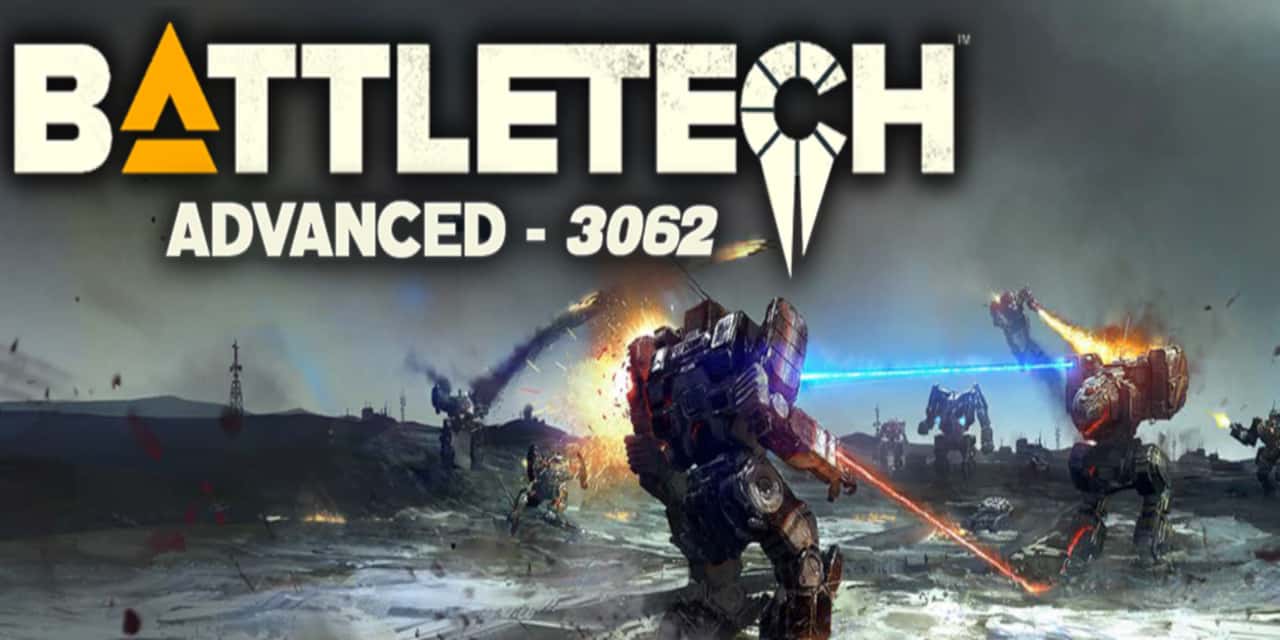
When the Harebrained Schemes BATTLETECH TBS launched in 2018, it was not just another new strategy game. It filled a gap that had been sitting there for a very long time. Since MechCommander 2, PC players had basically not received a proper BattleTech or MechWarrior strategy game, neither real-time nor turn-based.
There were one or two mobile and half-finished browser-based attempts, sure, but none of them delivered the AA+ game experience old fans had been waiting for.
Things were not exactly overflowing on the action game front either. MechWarrior 4 was already well into veteran age by then, and as a modern PC alternative there was essentially the free-to-play MechWarrior Online, which was a good thing, but obviously served a very different need than a single-player tactical BattleTech campaign.
Because of the copyright disputes that have surrounded the franchise almost since its birth, and because of the deteriorated relationship between developer Harebrained Schemes and publisher Paradox Interactive, we probably should not expect a sequel any time soon.
The small but extremely dedicated community, however, was starving for Battletech content, so plenty of smaller and larger mods were made. Some only added small quality-of-life features or a couple of new units.
Others, however, change the original game almost from the ground up. The three most popular larger mods:
- BattleTech Extended - Tactics (BEXT): Previously known as Battletech Extended (BEX), this expansion keeps the original game's ruleset almost entirely intact, but greatly expands the available units and missions, while also introducing a dynamic timeline.
- RogueTech: rebuilds the HBS game from the ground up and turns it into a huge Battletech sandbox. This overhaul is the closest to the ruleset of the original tabletop game. Hardcore fans only!
- BattleTech Advanced Universe (BTAU): sits somewhere between the two previous mods. It brings the vanilla game's mechanics closer to the tabletop rules, but still keeps the complexity within the range of a human brain. The strategy and management side also gets expanded beyond the tactical layer, and you will run into a ridiculous number of new mechs and vehicles that were missing from the base game. It is an ideal choice if you have already figured out the original ruleset and want more. This is the one we are going to take a closer look at installing. The mod was previously known as BattleTech Advanced 3062. Unfortunately, even the official documentation and the official installer are not fully consistent. Keep in mind that BTA, BTA3062, BTAU, BTA:U... all refer to the same thing.
Requirements
The mod is fairly massive. In my case, the installer downloaded almost 35 GB into its cache and placed another 18 GB into the game's Mods directory. So you will need at least that much free space on one of your drives.
You will also need at least half an hour, maybe closer to a full hour. The installation itself is only a few steps, but depending on the servers and the speed of your internet connection, the download can take quite a while.
If you have already installed any mods for Battletech, make sure you back them up, because BTAU will overwrite everything.
It is not mandatory, but the whole process will be more comfortable if you connect a monitor, keyboard and mouse to the Steam Deck for the duration of the installation.
Installation
I tried to keep the installation steps short and compact, so the guide remains easy to follow. If this is your first time installing a mod, or you are simply not that comfortable with the Linux-related parts, you can click the arrow next to the steps to open the extended explanation.
This guide is based on the directory structure of the Steam Deck and SteamOS, but it will probably be usable on most Linux systems as well.
Switch to Desktop Mode on the Deck
STEAM button > Power > Switch to Desktop
- Launch Steam
Set Steam Linux Runtime 1.0 (scout) as the compatibility runtime for Battletech
- Select the cogwheel icon next to the game name
- Choose Properties...
- Open the Compatibility tab
- Tick Force the use of a specific Steam Play compatibility tool
- From the dropdown menu, select Steam Linux Runtime 1.0 (scout)
- If the game is not installed yet, install it
Before installing the mod, you need to launch the game at least once.
Click Play and wait until the main menu loads, then exit the game.
If Battletech is installed in the default location on the internal drive, create a symbolic link with the
ln -s ~/.local/share/Steam/steamapps/common/ ~/steamgamescommand.- Launch the Konsole terminal emulator, or another application that gives you access to the command line
- Type
ln -s ~/.local/share/Steam/steamapps/common/ ~/steamgamesand press Enter.
With this command, you create what is called a "symbolic link". The
steamgamesdirectory in our home folder will point to the directory that contains your downloaded Steam games. It is somewhat similar to a Windows shortcut.This is necessary because the
~/.localdirectory is hidden on Linux, since its name starts with a dot. It is freely accessible and editable, but it will not show up in the BTA Launcher's file browser, so we would not be able to select the Battletech installation path.The
steamgamesname is completely optional. You can call it anything you like. This link will not point directly to the installed Battletech directory, but to its parent directory, where your other games are located as well. This way you can later use the same link for other mods with similarly Windows-style installers.- Download the latest version of the BTA Launcher strictly through the official BTA Mod download link.
Extract the downloaded
BTAdvancedLauncher.zipfile.It can be placed anywhere where you have at least 35 GB of free space. I chose the
~/BTAdirectory.Add the extracted
BTAAdvancedLauncher.exeto Steam as a non-Steam game.- In the Steam window, select Games > Add a Non-Steam Game to My Library... from the top menu.
- Click Browse in the bottom left.
- In the window that appears, browse to the extracted
BTAAdvancedLauncher.exeinside the~/BTAdirectory. - Click Add Selected Programs in the bottom right.
- The Launcher will now be available in the game list on the left side of Steam.
Set Proton 8.0-5 as the runtime for the Launcher
- In the game list on the left, select the cogwheel icon next to
BTAAdvancedLauncher.exe - Choose Properties...
- Open the Compatibility tab
- Tick Force the use of a specific Steam Play compatibility tool
- From the dropdown menu, select Proton 8.0-5
It really is important to start the launcher with exactly this version. It may be possible to get it running with other versions after some fiddling, but with 8.0 it starts right away.
- In the game list on the left, select the cogwheel icon next to
- Run the Launcher from Steam, still in Desktop Mode.
- On first start, the Launcher will probably warn you that you need to configure the basic settings. You can safely confirm this.
- Select the Battletech installation location under the BattleTech Exe Path option.
- If you used the symbolic link method above, you will find it in the left-side tree under Desktop > / > home > deck > steamgames > BATTLETECH > BattleTech.exe.
- After pressing Ok, you should see
Z:/home/deck/steamgames/BATTLETECH/BattleTechin the text field. Yes, the .exe extension does not appear here.
- Select the mod you want to install from the BTA Install Type dropdown menu. For a first run, the BTA-Light variant is recommended. It is already huge and contains a ton of new content.
- Close the User Preferences window with the X in the top right.
- If you are doing the installation on the Steam Deck's own screen: top menu > Banners > No-banner. This makes the fields and buttons we need fit on the screen.
- By default, the Browse button next to Install Target is disabled. To enable it, press the Advanced Mode button in the bottom left.
Under Install Target, browse to the installed game's Mods directory
If you used the symbolic link method above, you will find it in the left-side tree under Desktop > / > home > deck > steamgames > BATTLETECH > Mods.
Click Update/Install BTA and be patient. The first run can take anywhere from half an hour to a full hour.
On first launch, the Launcher downloads all packages next to the
BTAAdvancedLauncher.exefile, which takes quite some time.On later runs, it only checks how up to date the download cache is and downloads only the updates, so the process will be much faster.
Select the mod components you want to install. Make sure to select ModTek > Install ModTek and Fire Option for Linux Users > Old Fire for Linux Users. If you own DLCs, also select the packages that belong to them.
On first launch, the Launcher opens this window automatically. Later, you can access it with the Reconfigure BTA button.
- Click OK.
- In the popup window, click Yes. The Launcher warns you here that it will delete the entire Mod folder before installation, so any other existing installed mods may be lost.
- Once the process is finished, close the Launcher.
Make the BTA launch script executable with the
chmod +x ~/steamgames/BATTLETECH/run.shcommand.On Linux, whether a file is executable does not depend on whether it has an .exe extension. It depends on whether it has an "eXecutable", meaning executable, attribute. We add that to it with the
chmodcommand above.In Steam, add
./run.sh %command%to Battletech's launch options.- Cogwheel icon
- Properties...
- General tab
- Launch Options field, paste it here.
Launch the game from Steam.
If you did everything correctly, the ModTek loading window will already appear during startup, so you can tell that BTAU was installed successfully. The main menu background will also change. Desktop Mode was only needed to start the launcher. From this point on, you can launch the game normally from Game Mode as well.
Although the launcher also has a Launch BTA 3062 button, it only works on Windows, not on Linux.
- Start a new career and show the universe who the most resourceful MechWarrior really is! Have fun!
Notes about the BTAU mod
Since the expansion adds a huge number of new things to the game, it also amplifies the memory leak issue that already exists in the base game. For me, vanilla Battletech only stuttered for half a second here and there if it had been running for many hours, but it never crashed. Well, the modded version threw in the towel after 3 or 4 hours on the Deck. The developers also recommend saving and restarting the game every 2 or 3 missions, even with the Light version.
Because of all the new units, weapons and mechanics, the creators decided to disable saving during missions and restarting missions. This is important to keep in mind, because a single deployment can easily take several hours, so you need to finish it in one sitting. Fortunately, the modded game still tolerates suspending the Deck fairly well, so suspend can be a solution if you need to interrupt a battle for some reason.
The maps also become much larger, so long-range weapons get a much more serious role.
Among the rule changes, the most obvious one is that, in line with the original ruleset, a unit's Evasion value is not reduced in this mod just because someone shoots at it, which means you have to rethink the strategies that worked so well in vanilla. Sensor Lock and electronic warfare are not optional here, they are mandatory tools, and Light Mechs become much more valuable.
Listing every single new feature would take an entire article series, so I am linking a few resources that can help both complete beginners and OG Battletech veterans get up to speed. Be prepared that this reading and video watching can also eat up a few, or maybe a few dozen, hours.
Tutorials and info
- Official Battletech BTAU Wiki: where you can find all information in written form.
- BattleTech Advanced Universe Discord server: if you have a question, you will almost certainly get an answer here.
- MangaMaD's "Battletech Advanced 3062 Bitesize" YouTube Playlist: a themed video series that walks you through the specifics of the BTAU mod. It is not exactly new. At the time of writing this article, it is already more than 5 years old, so some parts may be outdated. Its huge advantage, however, is that it consists of short, 10-15 minute thematic videos, so it is easy to consume and also easy to search back through later.
- Battletech on Reddit: not only BTAU, but general Battletech discussion as well.
- How Long to Beat page: how long it took people to finish the game.
- The game's ProtonDB page: Linux and Steam Deck compatibility info.